IBV Connect Integration Guide
Technical instructions for integrating Bankuity IBV Connect into your client applications.
This document provides technical instructions for integrating the Bankuity IBV Connect system into your client applications. IBV Connect allows you to seamlessly facilitate Instant Bank Verification for your customers and provides Advanced Bank Verification analysis to enrich applications, calibrate risk, and optimize loan terms using existing loan management systems and underwriting workflows.
Integration Methods
There are two primary ways to initiate an IBV Connect session by directing your customer to Bankuity. Depending on your workflow, you will either (1) use a pre-generated Request GUID or (2) provide Client Information directly via URL parameters.
1. Using IBV Request GUID
This method is used when you have pre-initialized a request via the Bankuity API.
- Step 1 — GUID Generation: Obtain the
ibvRequestGuidby calling the Create IBV Connect endpoint:[BANKUITY_URL]/ibv-connect/create. - Step 2 — Redirect the customer to
[BANKUITY_URL]/ibv-connect?ibvRequestGuid={guid}
2. Using Client Information
This method allows you to pass customer details directly via query parameters without a pre-generated GUID. Use:
[BANKUITY_URL]/ibv-connect?cid={client_id}&customerId={customer_id}&firstName={first_name}&lastName={last_name}&email={email}&phone={phone}Parameters
| Parameter | Example | Description |
|---|---|---|
cid | your_client_id | Client ID from the Bankuity dashboard. If cid is missing, the API returns "Unauthorized". |
customerId | crm-user-10042 | Unique identifier for the customer in your CRM or database. Used to correlate the user when they are redirected back to your application. |
firstName | Jane | Customer first name; included when creating the IBV provider request. |
lastName | Doe | Customer last name; included when creating the IBV provider request. |
email | jane.doe@example.com | Customer email; included when creating the IBV provider request. |
phone | +15551234567 | Customer phone; included when creating the IBV provider request. |
Next steps
Once the customer completes the IBV process (or cancels it), the customer is automatically redirected to the Success or Failure URL configured in your Organization Settings in Bankuity.
Redirection Parameters
Bankuity appends the following parameters to your redirect URL so your system can process the result and map it to your local records:
| Parameter | Description |
|---|---|
customerId | The original customer ID provided in the initiation URL, used to sync the session with your CRM. |
requestCode | The unique request code from the IBV provider (available upon success). |
ibvConnectStatus | The outcome of the session: Verified, Rejected, Skipped, or Failed. |
requestId | The Bankuity internal ID for the report. Use this ID to retrieve the full report once processing is complete. |
Webhook Notifications (Optional)
If you have a Webhook URL configured in your Organization settings, Bankuity will automatically send a notification to your CRM or backend system.
The notification is sent as soon as the analysis is completed. This allows for asynchronous processing, ensuring your system is updated the moment the data is ready without the need for polling for results.
Technical Support
For further assistance or API credentials, please contact the Bankuity integration team or visit the Developer Portal.
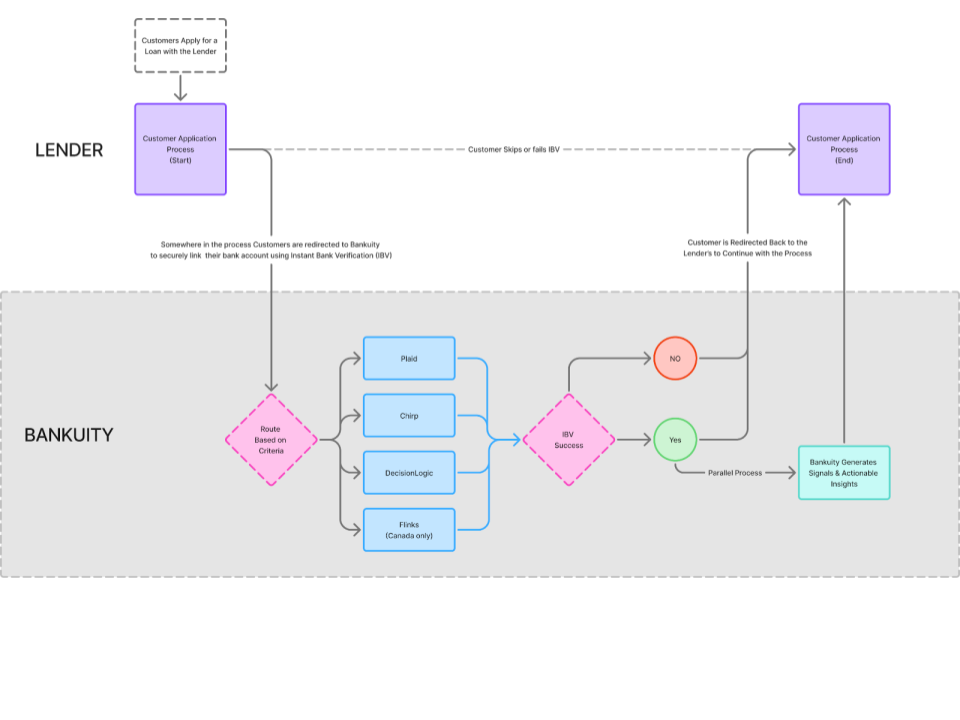
How IBV routing works (example)
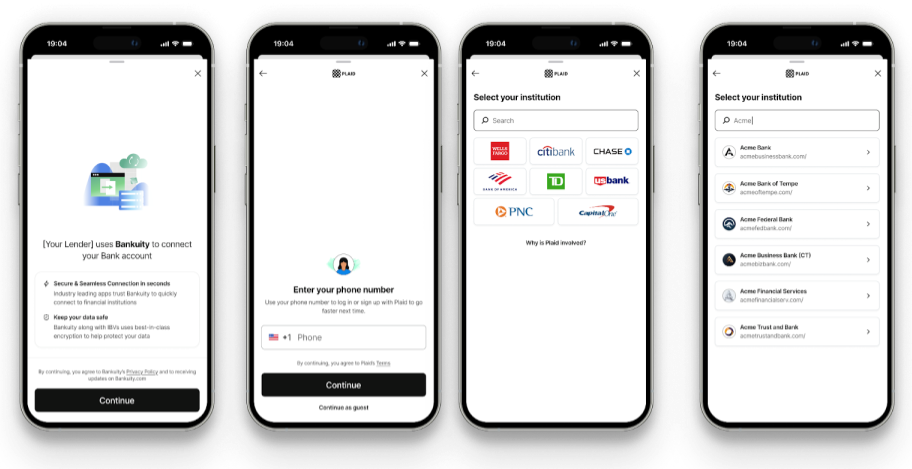
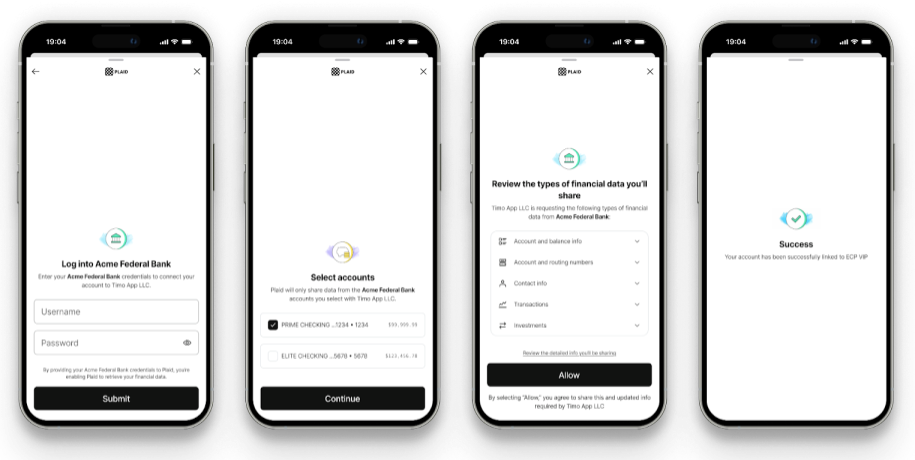
The example below illustrates how Bankuity redirects customers to IBVs and their workflows. While the example demonstrates Plaid, other IBVs operate similarly. When a customer is redirected to Bankuity, our proprietary routing engine evaluates the available IBVs and selects the most suitable one for the customer. Subsequently, the customer is returned to the flow on the lender's website.